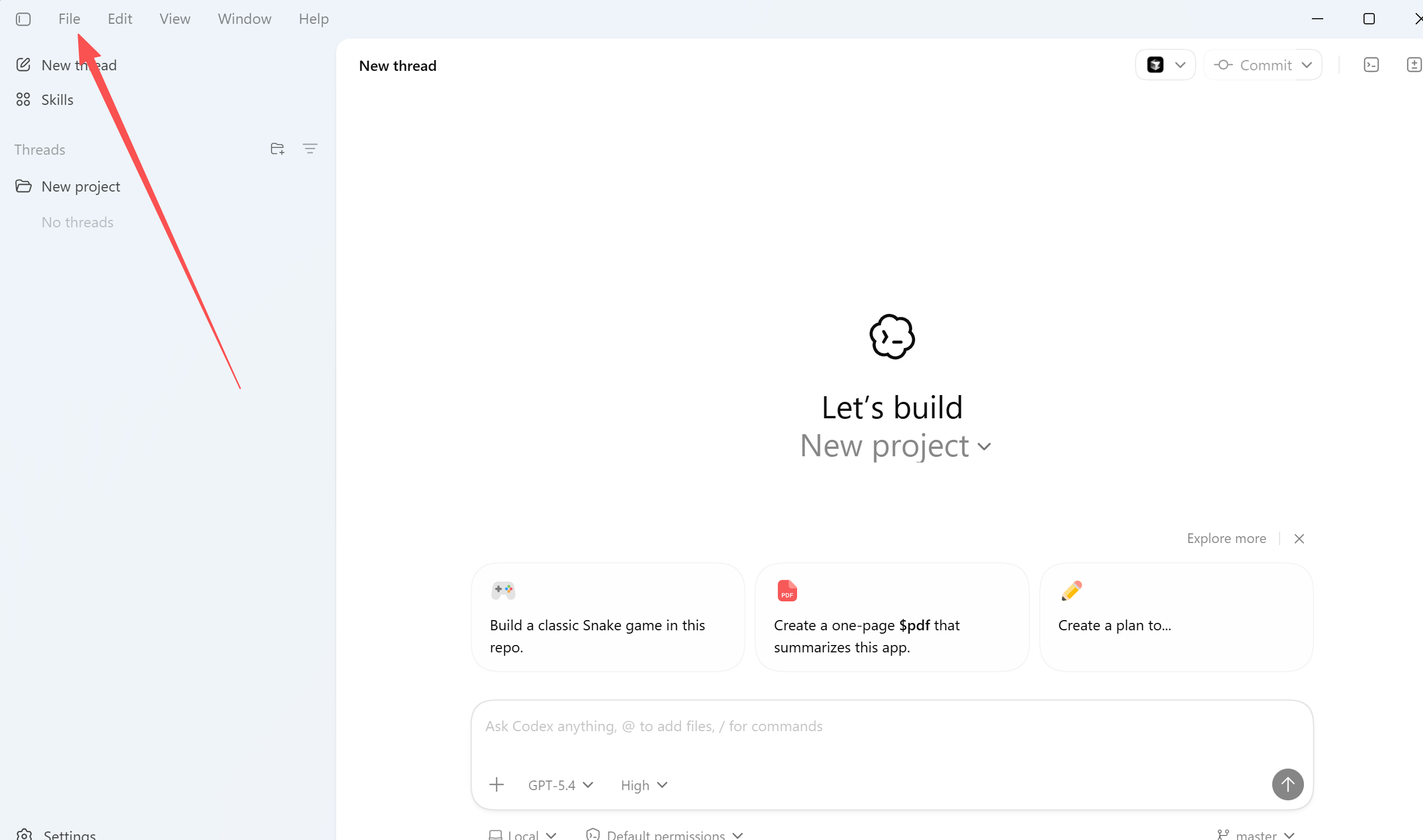
Fix Codex Desktop Image Generation via Third-Party Relay — Step-by-Step Guide (with One-Click Win/macOS Fix Scripts)
Codex Desktop works with your OpenAI-compatible relay for chat, but image generation fails? This guide covers the relay config, environment variables, and one-click fix scripts for macOS and Windows.

Fix Codex Desktop Image Generation via Third-Party Relay — Step-by-Step Guide (with One-Click Win/macOS Fix Scripts)
Intro: You've set up a third-party OpenAI-compatible relay in Codex Desktop, and text chat and coding work fine — but the moment you ask it to generate an image, it fails (common symptoms: the
image_gentool is missing, an authentication error appears, or the task finishes with no image output).This is usually not because "the image model doesn't exist." It happens when the relay config, the Codex built-in tool, and the desktop app's environment variables are not aligned together. Based on an open-source fix project, this article gives you a one-stop solution:
🔗 Open-source project: xianyu110/codex-imagegen-relay-fix
Who this is for: Users who already run an OpenAI-compatible relay inside Codex Desktop, where the relay already implements the /v1/models and /v1/responses endpoints. This article includes macOS and Windows walkthroughs.
💡 1. Key Principle: Image Generation ≠ Switching the Chat Model
Never set Codex's main chat model directly to gpt-image-2!
Codex works correctly like this: a conversation model that supports tool calling (Function Calling) decides when to trigger the built-in image-generation tool:
  【Main conversation model】 (e.g. gpt-5.4)
          ↓
  【Codex built-in tool】 (image_gen)
          ↓
  【Relay image model】 (gpt-image-2)
          ↓
  【Local output】 (image file)
So being able to chat does not mean the image pipeline is working. All four of the following must be satisfied:
| Key Element | Requirement |
|---|---|
| 1. Interface compatibility | The relay Endpoint must include /v1 and fully support the Responses API. |
| 2. Complete model list | The relay's model list must contain both a chat model (e.g. gpt-5.4) and the image model gpt-image-2. |
| 3. Decoupled auth | The Codex custom Provider must read the Key from an environment variable, not hard-code it. |
| 4. Variable inheritance | Every new Codex Desktop process must successfully inherit OPENAI_API_KEY. |
📋 2. Prerequisites & Self-Check
Before you start configuring, verify the following:
- [x] Codex Desktop is installed and opens normally.
- [x] A valid
OPENAI_API_KEYhas been written intoauth.jsonvia normal login or your existing flow. - [x]
~/.codex/config.tomlalready specifies a custommodel_provider. - [x] Your relay supports
GET /v1/modelsandPOST /v1/responses. - [x] The relay's model list contains
gpt-image-2plus a usable chat model (e.g.gpt-5.4).
⚠️ Security warning: Do not paste your API Key into terminal history, chat logs, screenshots, or the
config.tomlfile. The automation scripts below only check whether the Key exists — they never print or leak the Key itself.
⚙️ 3. Minimal Configuration Example
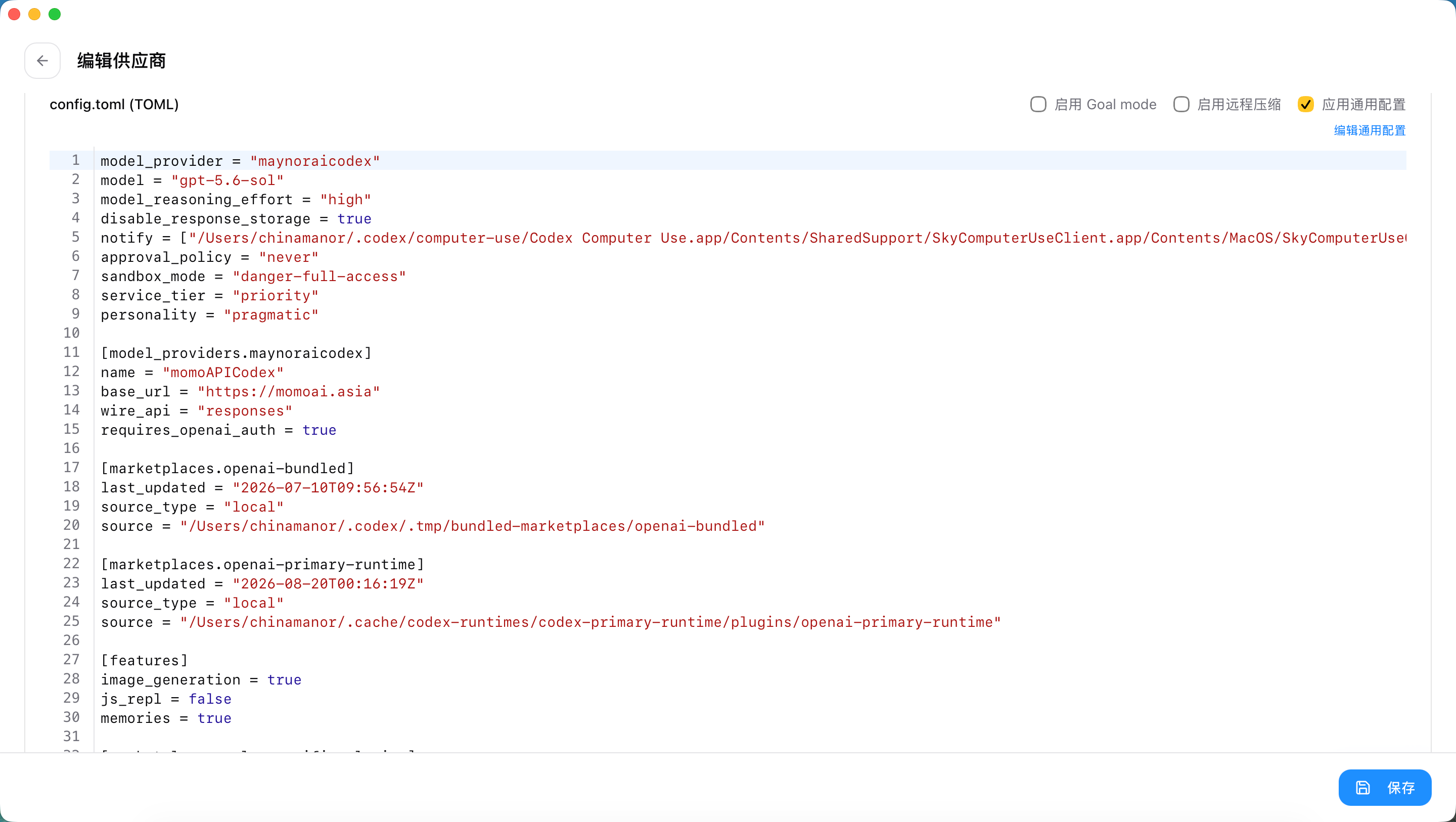
The automation script auto-detects your currently active model_provider and only modifies the image-pipeline-related settings. The resulting core structure of ~/.codex/config.toml looks like this:
[model_providers.custom]
name = "custom"
base_url = "https://relay.example.com/v1"
wire_api = "responses"
requires_openai_auth = false
env_key = "OPENAI_API_KEY"
http_headers = { "x-openai-actor-authorization" = "local-relay" }

[features]
image_generation = true
📌 Field-by-field explanation:
| Field | Correct value | What it does |
|---|---|---|
base_url |
https://your-relay.com/v1 |
Compatible relay address. Do not omit the trailing /v1. |
wire_api |
"responses" |
Forces Responses API protocol support on. |
requires_openai_auth |
false |
Disables Codex's default official-auth check. |
env_key |
"OPENAI_API_KEY" |
Reads the auth key from an environment variable. |
http_headers |
{ "x-openai-actor-authorization" = "local-relay" } |
Placeholder gate header for the built-in tool (not an API Key; compatible relays ignore it automatically). |
image_generation |
true |
Explicitly enables image generation under the [features] scope. |
💡 Conflict note: If the original config contains
auth = { command = ... }orexperimental_bearer_token, it will conflict with environment-variable auth. The script automatically cleans up and removes these redundant fields.
🍎 4. macOS: One-Click Setup & Verification
Open the macOS Terminal and run the following commands in order:
git clone https://github.com/xianyu110/codex-imagegen-relay-fix.git
cd codex-imagegen-relay-fix
chmod 700 fix-codex-imagegen-macos.sh
./fix-codex-imagegen-macos.sh
The script uses the demo relay https://momoai.asia/v1 by default. If you use a custom relay, you don't need to edit the script file — just override it via an environment variable:
CODEX_RELAY_BASE_URL='https://relay.example.com/v1' ./fix-codex-imagegen-macos.sh
🔍 How it works on macOS:
The script automatically reads the existing Key from $CODEX_HOME/auth.json or ~/.codex/auth.json and writes it into a user-level LaunchAgent. This injects the Key into the launchd process when you log in, so any later-launched Codex Desktop fully inherits the environment variable.
If the console prints the following, every config and interface check has passed:
OPENAI_API_KEY(auth.json)=EXISTS
OPENAI_API_KEY(macOS user launchd)=EXISTS
provider_config=OK
models_http=200
gpt-image-2=AVAILABLE
gpt-5.4=AVAILABLE
responses_http=200
image_generation_config=READY
🪟 5. Windows: PowerShell One-Click Setup & Verification
Windows doesn't use LaunchAgent. The script writes the Key into the current user's Windows environment variables so later-launched Codex Desktop processes can inherit it.
Open PowerShell (admin or normal user) and run:
git clone https://github.com/xianyu110/codex-imagegen-relay-fix.git
Set-Location codex-imagegen-relay-fix
Set-ExecutionPolicy -Scope Process -ExecutionPolicy Bypass
.\fix-codex-imagegen-windows.ps1
To change the relay address, use the -RelayBaseUrl parameter:
.\fix-codex-imagegen-windows.ps1 -RelayBaseUrl 'https://relay.example.com/v1'
📌 Note:
Set-ExecutionPolicy -Scope Processonly affects the current PowerShell window. It reverts automatically when you close the window and does not change the system-wide security policy.
The Windows script auto-reads %CODEX_HOME%\auth.json (or %USERPROFILE%\.codex\auth.json), and on success prints:
OPENAI_API_KEY(auth.json)=EXISTS
OPENAI_API_KEY(windows user environment)=EXISTS
provider_config=OK
models_http=200
gpt-image-2=AVAILABLE
gpt-5.4=AVAILABLE
responses_http=200
image_generation_config=READY
🔄 6. The Critical Final Step: Fully Restart Codex Desktop
🚨 This is the step most likely to break your setup! Even though the environment variable was changed, a Codex Desktop background process that is already running will not refresh its environment in real time.
Follow this order exactly:
- Fully quit Codex Desktop: right-click the system-tray/taskbar icon and choose Exit, making sure no background process remains (kill it via Task Manager / Activity Monitor if needed).
- Restart Codex Desktop.
- Start a brand-new conversation Session (⚠️ do not test inside an old task created before the change).
- Select a main chat model that supports Tool Calling (e.g.
gpt-5.4). - Send an image-generation command, e.g.: "Generate a PNG image with a white background and a centered blue circle."
Codex will now automatically trigger the built-in image_gen tool to call the image model — no manual model switching needed!
❓ 7. Common Errors & Troubleshooting
| Error / Symptom | Root Cause | Fix |
|---|---|---|
OPENAI_API_KEY(auth.json)=MISSING |
The local auth config file is missing the Key. | Complete the Codex desktop login or init-auth flow so auth.json is generated, then re-run the script. |
gpt-image-2=UNAVAILABLE |
The relay's /v1/models didn't return this model, or the current Key lacks permission. |
Contact the relay provider to confirm model routing and account-group permissions; you can't fix a server-side gap by editing local Codex config. |
responses_http is not 2xx |
Incompatible relay protocol or unavailable model. | Check in order: ① does base_url include /v1; ② does the relay support /v1/responses; ③ is the selected chat model actually usable. |
Script succeeds, but no image_gen in UI |
Old process not refreshed, or wrong model selected. | ① Kill the Codex Desktop background process and restart; ② start a new Session; ③ make sure you pick a chat model (e.g. gpt-5.4), not gpt-image-2 directly. |
🛡️ 8. Security & Privacy Boundaries
This solution only fixes local client config and the API-call chain — it cannot guarantee the absolute safety of a third-party relay for you:
- Privacy: Before using any third-party relay, understand its log-retention policy, sensitive-data handling, and billing rules. For trade secrets, private code, or sensitive images, prefer the official authorized service.
- System permissions: On macOS the Key is injected into the current user's
launchdsession; on Windows it's written to the user environment variable. This means any other app running under the same user account may be able to read the Key — pay attention to account-permission isolation when a machine is shared by multiple users.
📝 Summary
When a Codex relay is connected but image generation fails, the core chain is:
Relay /v1/responses → config env_key = OPENAI_API_KEY → enable image_generation → inherit system env var → main model calls image_gen
As long as you follow this article's automated script setup, fully restart the desktop client, and test in a new session, you'll get relay-based image generation working in no time!
📌 Related resources:
- Open-source fix tool: GitHub - xianyu110/codex-imagegen-relay-fix